




Rounded rectangle mask for Final Cut Pro (free effect)
If you ever tried to make a rounded rectangle mask in Final Cut Pro, you know how painful it is. So I made my own effect - and I’m giving it away for free.
Get the effect
Why I built it
I wanted something really simple: a colored box with rounded corners behind a line of text. That’s one of the most common elements in modern videos - titles, callouts, captions, picture-in-picture, screen recordings of apps. Final Cut Pro even has a built-in mask with a roundness slider, so I thought it would take 10 seconds.
It didn’t. No matter how I set it up, the corners looked off. So instead of fighting it in every video, I opened Motion and made my own mask that just does the right thing.
The built-in Shape Mask vs my effect
Here’s the difference, side by side in Final Cut Pro. The coral shapes use my Rounded Rectangle Mask, the blue ones use Final Cut’s built-in Shape Mask:
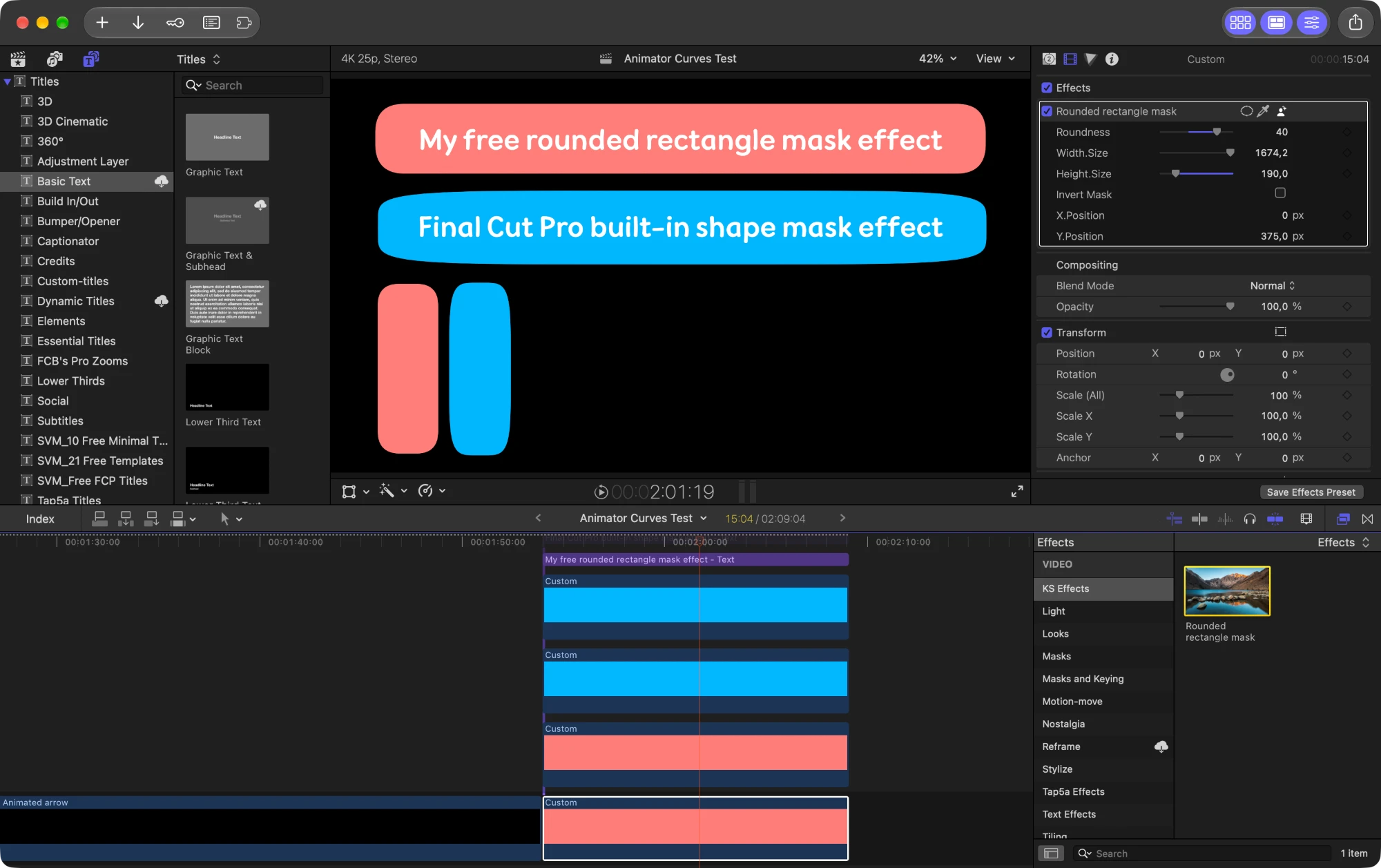
Click the screenshot to see it full size.
Look at the corners. On the coral shapes they’re perfect circle arcs, the same on every side. On the blue ones the roundness is calculated in some weird way and - the worst part - it’s not symmetrical: each corner gets a different horizontal and vertical radius, so you get stretched, lopsided curves instead of a clean round corner.
The bigger the difference between the long and the short side of your rectangle, the more obvious it gets. A square looks fine. A wide text box or a tall vertical card (like the two at the bottom of the screenshot) looks broken - and those are exactly the shapes you need most often.
Why it matters
Rounded corners are one of those details nobody notices when they’re right - and everybody feels when they’re wrong. Viewers won’t say “the corner radius is asymmetric”, they’ll just feel the video looks a bit cheap. And if you put it next to a screen recording of an iPhone or Mac app, where every corner is perfect, the mismatch is even more obvious.
The usual workarounds aren’t great either: export a PNG from Figma or Keynote, or draw a custom shape in Motion. Both work until you need a slightly different size - then you do it all again.
Apple rounds every corner of every product they make, and yet their own mask can’t do it properly. I really don’t understand that 🙃 So I made the one I wanted, and since it’s already solving my problem, I might as well share it.
What my effect does
It’s a simple mask with symmetrical corners - the regular, good-looking roundings you get in pretty much any design software. In the inspector you get:
- Roundness - the corner radius, the same on both axes
- Width and Height - the size of the rectangle
- Position (X and Y) - move it around the frame
- Invert Mask - keep the outside instead of the inside
Small caveat: these are standard rounded corners, not Apple’s smooth “squircle” corners you see on app icons. Figma has those as a corner smoothing setting and I honestly like them more - but for video, regular rounded corners look great and that’s what most people need.
I also didn’t add on-screen controls, so you set the size and position in the inspector. I wanted to quickly solve my own problem, and it does 😅
How to install it
- Download and unzip the file.
- In Finder, press Cmd + Shift + G and paste
~/Movies/Motion Templates.localized/Effects.localized/(create theMotion TemplatesandEffectsfolders if they don’t exist yet). - Copy the KS Effects folder there.
- Restart Final Cut Pro.
You’ll find it in the Effects browser under KS Effects → Rounded rectangle mask. Drag it onto a clip and adjust it in the Video inspector.
Bonus: make your own Final Cut effects in a few clicks
The best part is that you can build effects like this yourself by modifying the built-in ones - if you have Motion.
- In Final Cut Pro, right-click an effect, title or transition in the browser and choose Open a copy in Motion.
- Change what you need, or publish extra parameters so they show up in the Final Cut inspector.
- Save it as your own effect and pick a category - it shows up in Final Cut Pro right away.
Because you start from Apple’s own effect, you can be sure the Motion setup is correct and you’re only changing the part you care about. This works for most Final Cut titles, effects and transitions, so if you like a built-in effect but wish it had one more option - that’s a few clicks away.
P.S. When I record videos like this one, I read the script from VoicePrompter - the teleprompter app I build. It scrolls by following your voice, so it saves me a lot of time (and retakes 😁).
Frequently asked questions
How do I make rounded corners on a video in Final Cut Pro?
Apply a mask effect with rounded corners to the clip. The built-in Shape Mask has a roundness option, but the corners are asymmetric on non-square shapes. My free Rounded Rectangle Mask effect gives you symmetrical corners with a single Roundness slider.
Why are the Shape Mask corners uneven in Final Cut Pro?
The built-in Shape Mask calculates roundness relative to the shape's dimensions, so the horizontal and vertical radius of each corner end up different. The bigger the difference between the long and short side, the more obvious it gets.
Where do I install a Final Cut Pro effect?
Put the effect folder into ~/Movies/Motion Templates/Effects/ (in Finder it may show as Motion Templates.localized/Effects.localized), then restart Final Cut Pro. The effect appears in the Effects browser under its category name.
Do I need Motion to use this effect?
No. The effect works in Final Cut Pro on its own. You only need Motion if you want to open it and change how it works.
Is the effect really free?
Yes. Enter your email and you go straight to the download. You also join my email list - no spam, I'll only email you when I release a new effect or something useful for Final Cut Pro. Unsubscribe anytime.